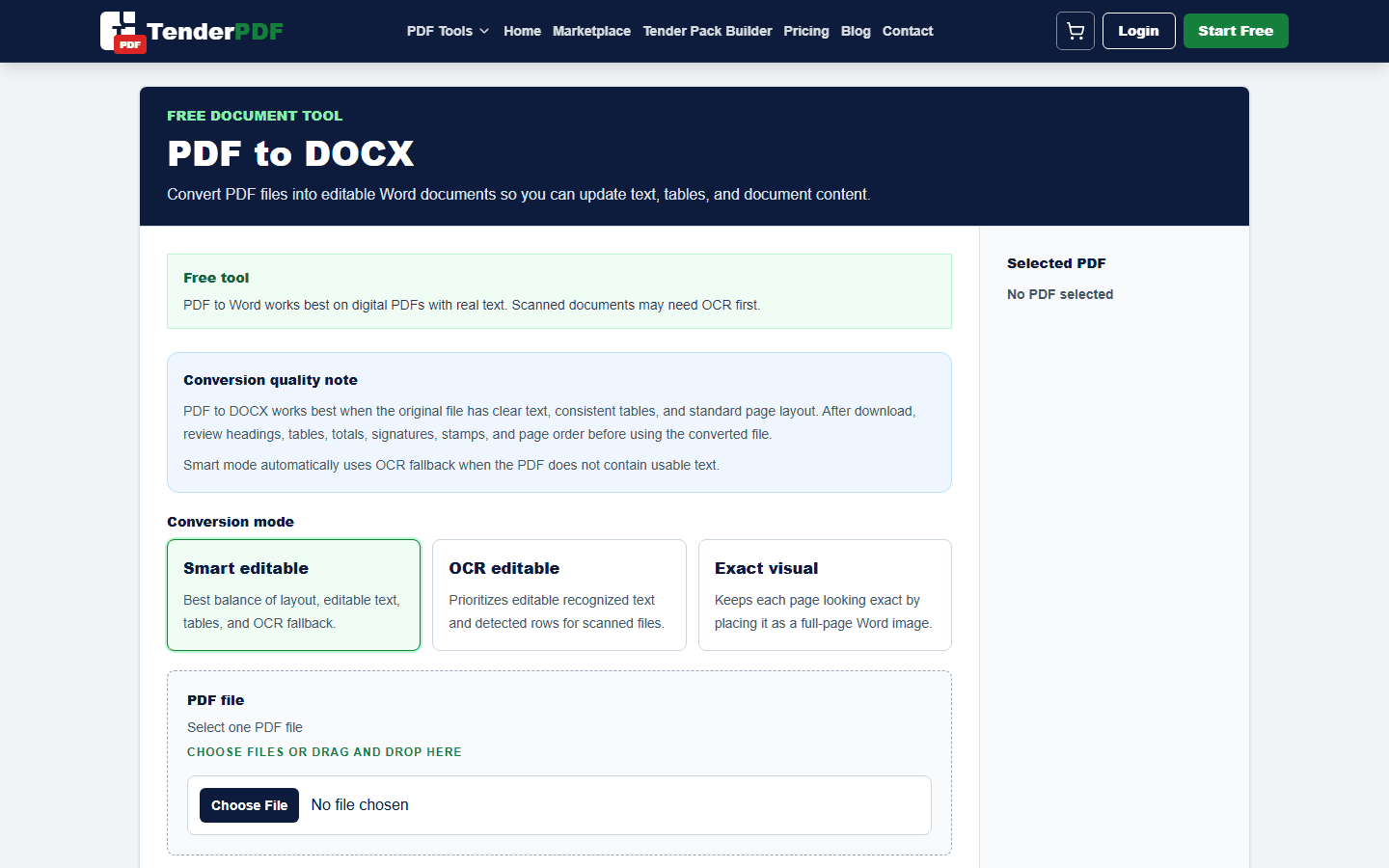
Converting a PDF to Word is useful when you need to reuse text, update a proposal, edit a report, or rebuild a document that was only available as a PDF. The best results come from clean PDFs with selectable text, clear layout, and readable fonts.
Worked example
Example: convert a searchable policy PDF to Word, then compare headings, paragraphs, tables, page breaks, and fonts against the source before editing.
How this guide was prepared
TenderPDF publishes reviewed, people-first guidance. Product guides are checked against the live workflow, regulated topics link to official sources, and material changes are recorded by the editorial team.
Read our editorial standardsWhen PDF to Word works best
PDF to Word conversion works best on documents that were created from Word, Excel, or another digital source. Scanned PDFs may need OCR first because the page is an image rather than editable text.
Prepare the PDF before converting
Check that the PDF is not password protected, badly rotated, or made up of unclear scans. If it contains unnecessary pages, split or delete them first so the converted Word file stays focused and easier to clean up.
Review the Word output
After conversion, check headings, tables, bullet points, page breaks, logos, signatures, and spacing. Complex PDFs can convert with small layout changes, so always review the DOCX before sending it to a client or uploading it.
Useful TenderPDF tools for this guide
Continue the workflow with related PDF tools. These internal links help you move from the guide into the exact document action you need.
Related business and tender services
These service pages connect this guide to TenderPDF support workflows for compliance, tender readiness, and supplier documentation.
Quick checklist
Download checklist- Use a clean readable PDF
- Run OCR first if the PDF is scanned
- Check tables and page breaks after conversion
- Keep the original PDF as a backup
Frequently asked questions
What should I check before following this pdf to word converter guide guide?
Confirm that you are working from the latest document or official requirement, keep an original copy, and review the final output before submitting or relying on it.
Can TenderPDF help with this workflow?
Yes. The Convert PDF to Word workflow can help you prepare the related document, but you remain responsible for reviewing the final file.
Should I verify legal, tax, tender, or compliance requirements?
Yes. Requirements can change and may depend on your business or project. Confirm current rules with the relevant authority or a qualified professional before acting.
Related guides
Continue with nearby TenderPDF guides that support the same document workflow.
Prepare your documents online
Use TenderPDF to process, organize, and prepare PDF documents for upload, sharing, and business workflows.